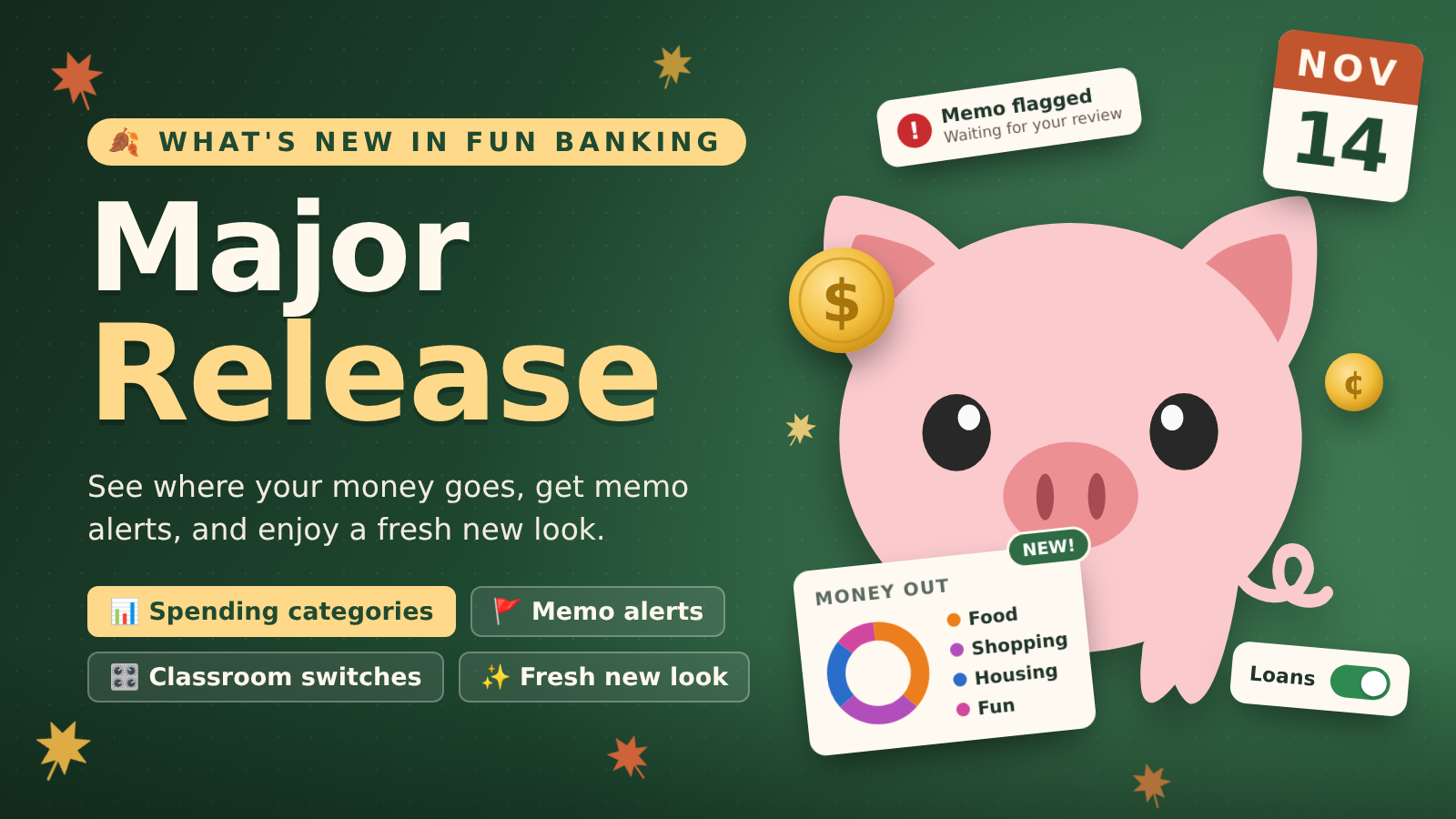
The last two weeks were busy at Fun Banking. We redesigned the whole site, taught the app to sort transactions into categories so students can see where their money goes, gave teachers more control over what each classroom uses, and fixed a lot of small things that were getting in the way. Here’s what changed.
A fresh new look
Every page got a refresh. Pages are lighter and calmer: white cards on a soft background, cleaner headings, friendlier buttons, and easier-to-read tables and numbers.
A few pages got extra attention:
- Your inbox now shows one tidy row per request: who it’s from, what it is, the amount, the memo, and Approve or Decline. On phones the buttons get their own row so they’re easy to tap. When you’ve handled everything, you’ll see a little “all caught up” message.
- Announcements on your dashboard are a slim card you can dismiss, and they stay dismissed.
- Messages and warnings (like a wrong PIN on the student portal) are easier to read.
- Our homepage, features and pricing pages are new too, with real screenshots of the app. All of our how-to videos have been re-recorded to match.
See where your money goes
Real banks sort your spending into categories like groceries, bills and entertainment, so you can see where your money goes. Now Fun Banking does too.
- Transactions are categorized automatically. When money moves, Fun Banking reads the memo and files the transaction under a category like Income, Food & Dining, Shopping or Housing. It even tells “Monthly” rent apart from “Monthly” interest by looking at the kind of transaction. Anything it can’t place yet is marked Uncategorized.
- Two charts on every account page. Students (and their teachers) see two donut charts for the month: Money in and Money out, broken down by category, with the amount and share of each.
- Dots that match the charts. Each transaction in the list gets a small coloured dot in its category’s colour. Hover over or tap it to see the category’s name, so students can connect each purchase to its slice of the chart.
- It gets smarter over time. We’re always teaching it new memos, so fewer transactions end up Uncategorized as time goes on.
It’s a natural way into budgeting conversations: “Where did most of your money go this month?” Pro teachers can turn the charts off for a classroom under More actions → Features.
Get notified about inappropriate memos
Students write memos on almost everything they do, and sometimes they write things that don’t belong in a classroom. Now Fun Banking keeps an eye out for you, so you can keep your economy friendly without reading every transaction.
- Every memo is checked automatically. When a student sends money, pays a bill or makes a purchase, Fun Banking reads the memo and spots ones that look vulgar or like spam (keyboard mashing and the like).
- Flagged memos land in your inbox. A new Flagged Memos section shows inappropriate memos from the last 30 days, and they count toward your inbox badge, so nothing slips by.
- Warning icons where you look anyway. On account and statement pages, a red warning icon marks a vulgar memo and an orange one marks spam. Only teachers see these icons, never students.
- You decide what happens next.
- Not a problem clears the flag if the memo is fine (it’s an automatic check, so it can occasionally be wrong).
- Reviewed hides the memo from everyone. It shows as “Memo removed” on account pages, statements (including PDF and CSV downloads), your inbox and activity feeds. The transaction itself is untouched.
- It keeps getting better. We’re always teaching it with new examples, so its calls get more accurate over time.
Turn features on and off for each classroom
Watch the guide here.
Not every class needs every tool. Pro teachers can now open a classroom’s More actions → Features and switch these on or off:
- Credit cards
- Wires
- Loans
- CDs
- Presets
- Spending categories
Turning one off hides its buttons and stops students from starting new ones. Anything already running, like an open loan or a CD, keeps going. Turning Presets off hides them but keeps your saved presets, so they’re all back when you turn it on again.
Easier forms
- New dropdown menus. Every dropdown in the app now opens the same clean menu. Account pickers show each account’s balance in a small pill, and credit cards get a card icon. Menus open upward when there’s no room below, so they’re never cut off on a phone.
- Currency symbols in money fields. Amount and price fields show your classroom’s currency symbol ($, €, £ and more) right in the box.
- Credit cards at checkout now show what’s left to spend (“$245.00 available”) instead of a confusing negative balance.
- Pop-up windows are easier to use with a keyboard and screen readers. Each has a close button, and if you’ve typed something, closing by accident asks before throwing it away.
- When something goes wrong, you’ll know. If an action fails, a short message pops up at the bottom of the screen telling you why, instead of a button that seems to do nothing.
- Student PINs are entered in a proper PIN field, so scrolling over it can’t change the number by accident.
Sending money with a note
Students can add an optional note when they send money, like “thanks for lunch”. It shows up as “Money sent to Ava: thanks for lunch”.
Deleting CDs
Teachers can now delete an active CD from the student’s page. Deleting a CD doesn’t put the money back into checking, and the confirmation says so.
Safer student sign-in
A student who types the wrong PIN three times on the same device now waits 15 minutes before trying again, with a countdown on the screen. It’s counted per device, so one student’s mistakes won’t lock out a whole class sharing the school’s internet.
Money fixes
We went through the money side of the app carefully and fixed several things:
- Monthly and yearly schedules follow the calendar. Something due on January 31 now comes due on February 28, not March 3.
- Recurring bills and payments with a start date in the past begin at their next due date instead of catching up on every missed one.
- Paying a credit card can’t be for more than is owed, and paying the card also settles its statement bill, so the same debt is never paid twice.
- Approving a request twice (a quick double-click, or two co-teachers at once) now applies it only once.
- Bill payments show as money out on statements, not money in.
- Statements keep their dates. Removing a store or a user no longer moves old transactions into the current month.
Plans and billing
- Professional teachers can now upgrade to an Organization plan in a couple of clicks. You’ll only pay the difference for the rest of your billing period, with no second subscription.
- If your school covers your plan, you’ll see that instead of an upgrade button.
Thanks for teaching with Fun Banking. If something isn’t working the way you expect, or you have an idea, we’d love to hear from you.