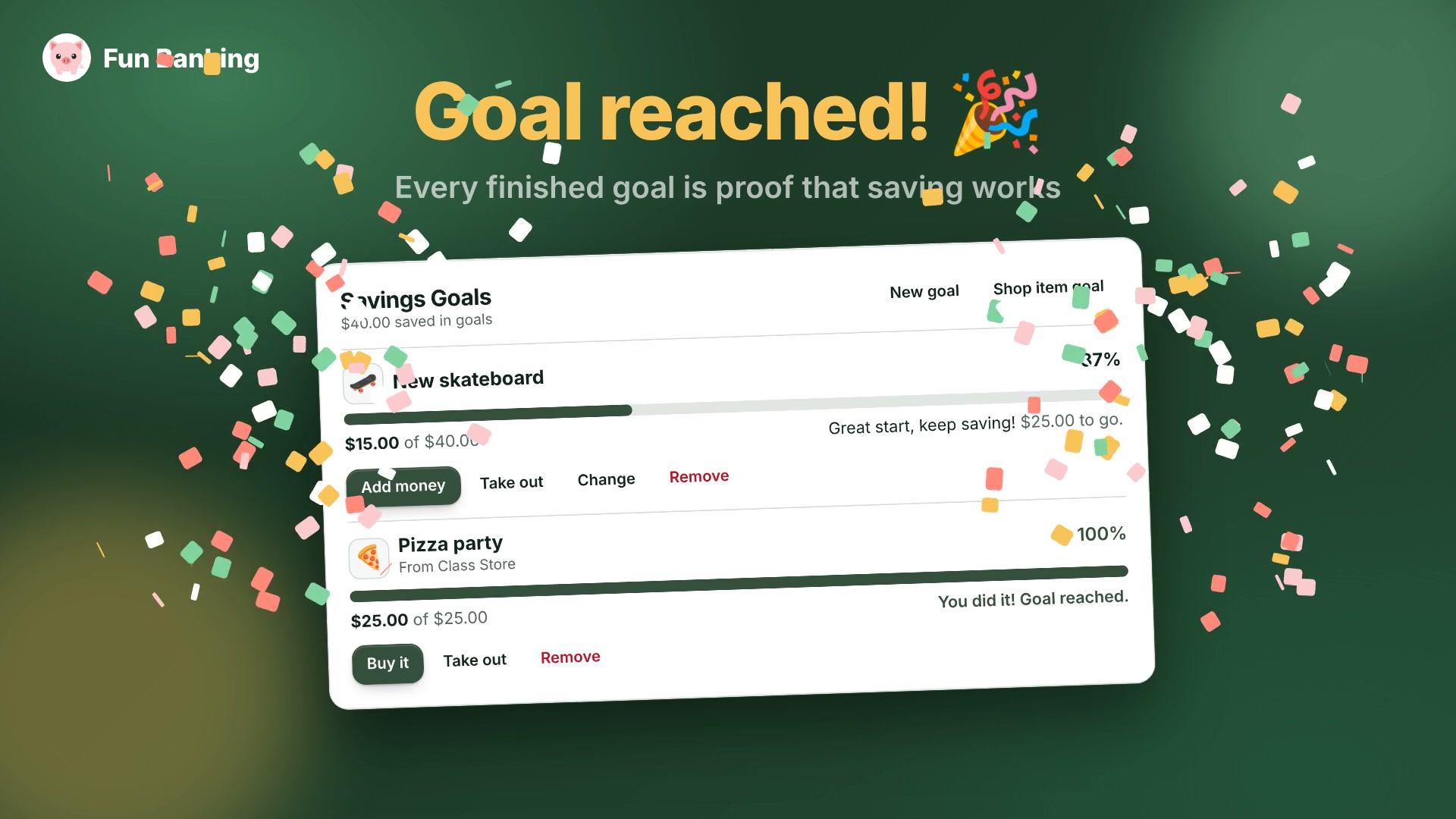
“Save your money” is easy advice and hard to follow, at eight or at forty-eight. What helps is having something to save for: a skateboard, a pizza party, a homework pass. Savings Goals gives every student in Fun Banking a place to name what they want and watch their money get there.
It’s free on every plan, including Free, and it’s on in every classroom from the start.
What a goal is
Each student can have up to three goals at a time. A goal is one of two things:
- Something of their own. A name (“New skateboard”) and an amount to save ($40).
- An item from the classroom store. The student picks something from a store linked to their classroom, and the goal’s target is the item’s price. If you change the price, the goal follows.
You’ll find goals in the Savings Goals card on every student’s page. Students see it when they sign in to the Student Portal, and you see it when you open the student from your classroom.
A goal holds real money
A goal isn’t just a number to aim for. It’s a pot that holds its own money.
- Add money moves money into the goal from the student’s checking or savings account.
- Take out moves it back again.
Both show up in the account’s history as ordinary transfers, such as “Transfer from Checking to goal: New skateboard”, so students can see where their money went. Their total balance still counts it (“Includes $15.00 in savings goals”), because it’s still their money, just set aside.
As the goal fills, a progress bar grows and the card cheers them on: “Great start, keep saving!” at a quarter, “Halfway there!”, then “Almost there, keep going!” The bar only reaches 100% once the goal is actually met. When it does, the goal throws confetti every time the card loads, unless the student’s device asks for reduced motion.
Buying a store item from a goal
Goals for a store item come with a shortcut to the finish line.
- Buy it: once the goal is full, one click buys the item with the money in the goal. It goes through the store just like any other purchase, with a receipt, the item’s stock updated, and a “Purchase at…” line in checking.
- Buy now: a student who doesn’t want to wait can buy before the goal is full. The money in the goal goes toward the price, and checking pays the rest. The confirmation spells out exactly how it splits, and if checking can’t cover it, nothing happens.
Either way, the goal is done once the item is bought, and anything left over stays in checking.
What teachers can do
You can do everything a student can, on their behalf: set a goal, move money in or out, buy the item, or remove the goal. That helps with younger students, or with a student who’s stuck.
A few more things worth knowing:
- Removing a goal returns its money to savings (or to checking if there’s no savings account), so nothing is ever lost.
- Students can only touch their own goals. Nobody else can see, fill or empty them.
- You can turn goals off for one classroom. Open the classroom’s More actions → Feature Toggles and switch off Savings Goals. The card disappears, and any money already in goals stays put until you switch it back on.
- Read-only classrooms keep their goals, but nobody can move money in or out until the classroom is reopened.
Ideas for your classroom
Savings Goals works best when it’s part of the conversation, not just a card on the page. A few ways teachers use it:
- Set the first goal together. Ask each student to name one thing in the class store they’d like, and make it their first goal. Seeing “$0.00 of $25.00” turns an abstract price into a plan.
- Talk about “Buy now” vs. waiting. Buy now is a real choice with a real cost: the rest comes out of checking. Ask students what else that money could have done. That’s opportunity cost, with their own money.
- Pay day, then save day. After a payday or reward, give students a minute to move some of it into a goal before they spend. Small, regular amounts are the habit you’re building.
- Celebrate finishing. Confetti is fun, but a shout-out when someone reaches a goal is even better.
Get started
There’s nothing to set up. Open any student’s page (or have students sign in to the Student Portal) and choose Set a goal or Save for a shop item. For store goals, make sure a store is linked to the classroom and has an item in stock with a price.
Every goal is a small lesson in planning ahead, and every finished one is proof that saving works.